APP
Return to
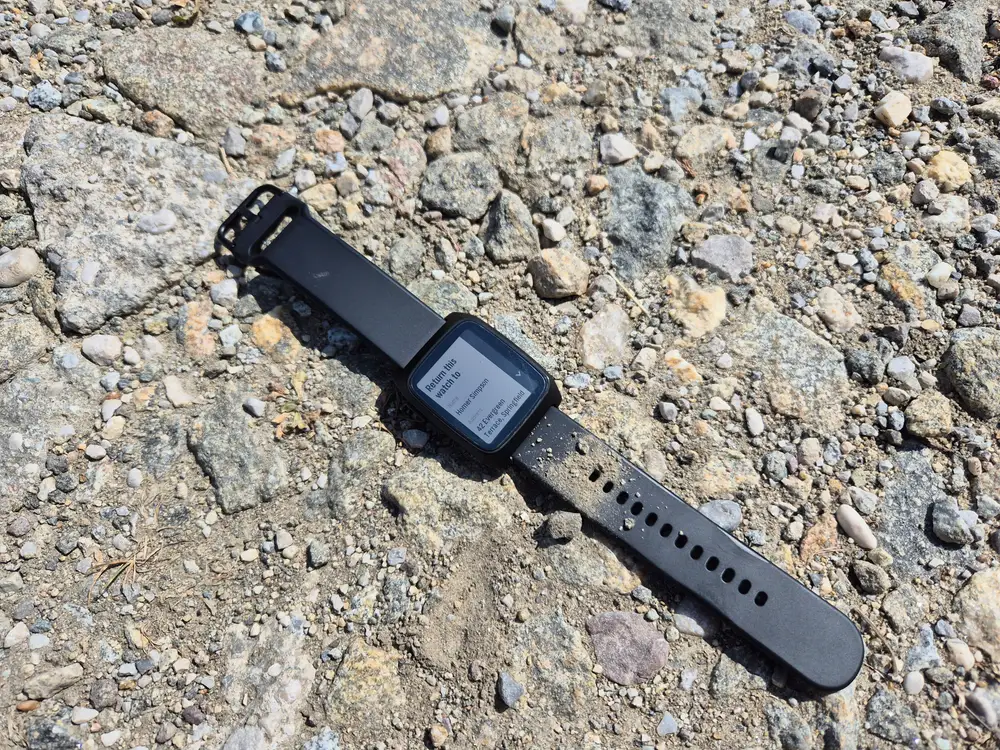
Lost your Pebble? Make it easy to get back.
Return to shows a clear “Return this watch to” screen with your name, address, phone, and email — so whoever finds it knows how to reach you. Set it once in settings and leave it on your app list. When it matters, the info is right there on the wrist.
FEATURES
What it does
- “Return this watch to” screen with your details
- Name, address, phone & email — any combination
- Empty fields are hidden, so the screen stays clean
- App-list subtitle shows your contact at a glance
- Readable on Time 2 and Round 2, with scroll hints
- Configurable from your phone
Contact fields
Fill in any combination of name, address, phone and mail: who the watch belongs to, where to return it, a number to call, an email address.
Empty fields are hidden, so the screen stays clean no matter how much or how little you fill in.
App list subtitle
Choose which fields appear under the app name in the launcher. Selected values are joined with “ / ” so you can spot your contact details at a glance without opening the app at all.
SCREENSHOTS
On the watch
Pebble Time 2
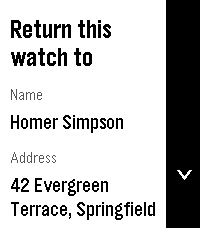
The contact card on Pebble Time 2
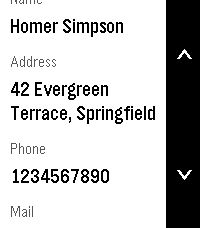
Scroll hints appear when there is more to see
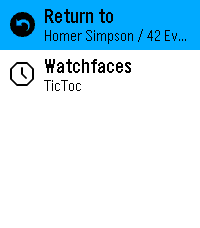
The launcher subtitle, visible without opening the app
Pebble Round 2
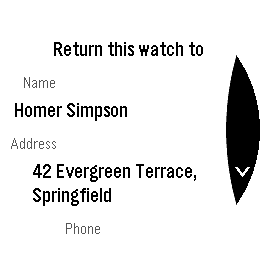
Laid out for the round screen
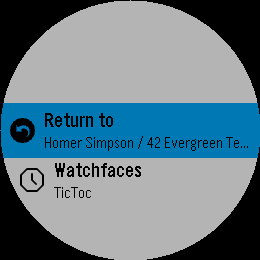
Same subtitle in the Round 2 launcher
SETUP
Pin it to the top of your app menu
So anyone who finds your watch and opens the menu sees it right away:
- Open the Pebble app on your phoneThe same app you use to install watchfaces.
- Go to AppsThe list of everything installed on your watch.
- Tap My AppsThis is the order your watch menu uses.
- Long-press Return to and move it to the very topIt is now the first thing in the launcher.
CONFIGURATION
Settings
Open Return to in the Pebble app on your phone to edit your contact card:
- NameWho the watch belongs to.
- AddressStreet, city, country — where to return it.
- PhoneA number to call.
- MailAn email address.
- App list subtitleToggle which of the four fields show under the app name in the launcher.
COMPATIBILITY
Where it runs
- Watches
- Pebble Time 2Pebble Round 2
- Uses
- Settings on your phone
- Version
- 1.4
- Category
- Tools & Utilities
Free on the Pebble Appstore. No account, no tracking.
Get Return to
An ICE-style contact card for your Pebble — your name, address, phone and email on screen, so whoever finds your watch knows how to reach you.
ALSO BY FLWKT
More for your Pebble
WATCHFACE
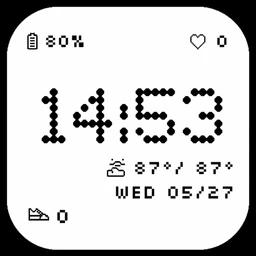
Retro Dot
A dot-matrix Pebble watchface with the time in bold pixels and battery, date, heart rate, weather and activity at a glance.
- Pebble 2 / 2 Duo
- Pebble Time 2
- Pebble Round 2
APP
Sidecar
A quick-launch Pebble watchapp with a configurable grid of complications — weather, steps, heart rate, sleep and battery — one press away.
- Pebble Time 2
- Pebble Round 2